Andrew Huang barrels through Ableton Live like a rave-bunker demolition crew, armed with 13 workflow bombs guaranteed to speed up your session or at least make you look clever in front of your mates. If you thought you knew all the hacks, think again—Andrew pulls out tricks from sample swapping to automation gymnastics, all in that signature style: playful, sharp, and relentlessly useful. Whether you’re a diehard drum rack fiddler or just want to stop cursing at your undo button, this video is a quick-fire bootcamp. Spoiler: some of these tips are so good, you’ll wish you hadn’t slept on them for the last five versions.
23. May 2026
SPARKY
Andrew Huang’s 13 Ableton Power Tips: Workflow Weapons for the Sonic Street
Workflow Street Smarts: 13 Ableton Tips in a Flash
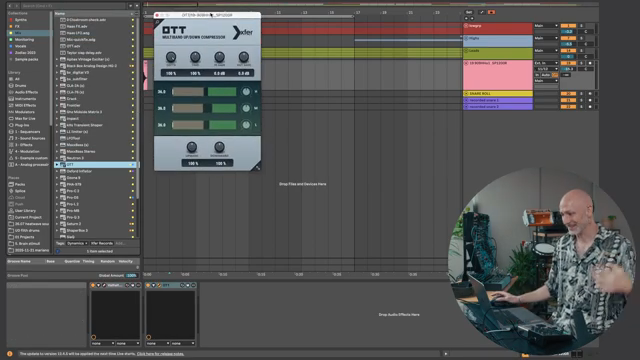
Andrew Huang doesn’t mess about—he launches straight into Ableton Live’s lesser-known buttons and workflow accelerators. Ever noticed that sneaky Similar Sample Swap button in Drum Rack? If not, Andrew shows how it can turn your kit into a shape-shifting beast, letting you hot-swap sounds and even lock your favourites while the rest play musical chairs. The pace is relentless: from swapping kits and locking samples to slicing MIDI notes with a combo move, it’s a rapid-fire parade of shortcuts designed to keep your creative flow moving, not stuck in the mud.
The real magic is in how these tricks add up. Automation scaling, dragging tracks from other projects, and setting up default tracks or plugins—each tip is a minor revolution for anyone who’s ever lost five minutes to Ableton’s menus. Andrew’s delivery is all quick hands and zero fuss, making even the nerdiest workflow hack feel like an essential street weapon. Some of these features are so tucked away, you’ll probably want to watch his video twice just to catch all the finger gymnastics.
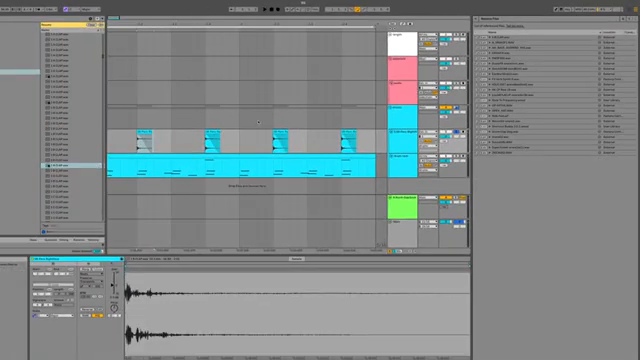
"I can actually audition a bunch of things, and I can scroll backwards if I want through the ones I've already heard."
© Screenshot/Quote: Andrewhuang (YouTube)
Sample Replacements Without the Headache
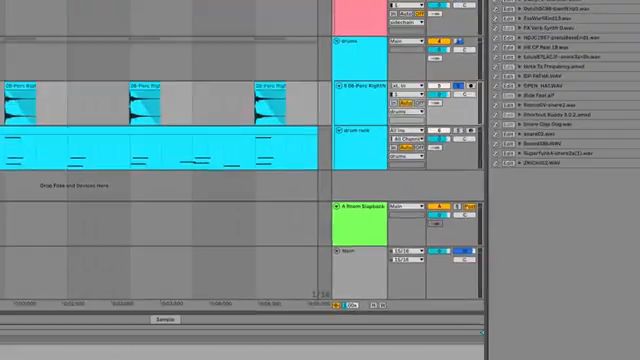
"You can drag any other sample we want there, and they all switch out across your whole project."
© Screenshot/Quote: Andrewhuang (YouTube)
Tired of hunting down every single instance of a sample in a sprawling project? Andrew’s got your back. He shows how a quick trip to the expanded waveform view and a right-click on ‘Manage Sample File’ lets you swap out one sample for another across your entire project in seconds. No more tedious manual replacements—just drag and drop, and watch every snare, clap or weird donkey noise instantly update. If only real life had a button like this for socks.
MIDI Chop Shop: Drum Rolls the Easy Way
Let’s face it, programming hi-hat rolls in Ableton can be a pain—unless you know the Command + E trick. Andrew slices MIDI notes into any number of repeats with surgical efficiency, showing how you can conjure up intricate drill hats without battling the grid or duplicating notes like a caffeinated octopus. The up/down arrow tweak makes it dead easy to experiment with different roll lengths on the fly.
The payoff? Instant, creative rhythms that would normally take ages to program by hand. Watching Andrew breeze through MIDI manipulation is a reminder that sometimes the best features are hiding in plain sight. You’ve got to see his workflow in action to appreciate just how much time you’ll save (and how many headaches you’ll dodge).
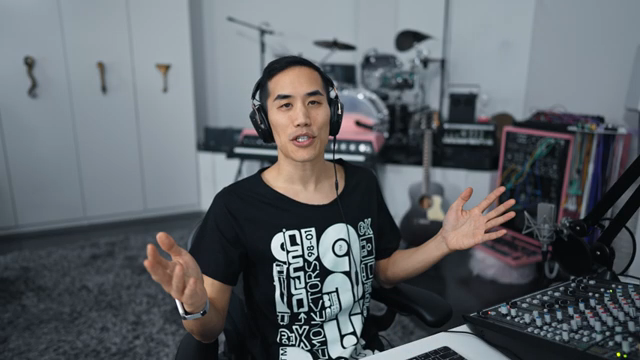
"Just a much easier way to audition these kind of hi-hat rolls when the alternative is like changing the size of your grid and then like duplicating a bunch of them."
© Screenshot/Quote: Andrewhuang (YouTube)
Splice in the Browser: Sample Shopping, Now with No Alt-Tab
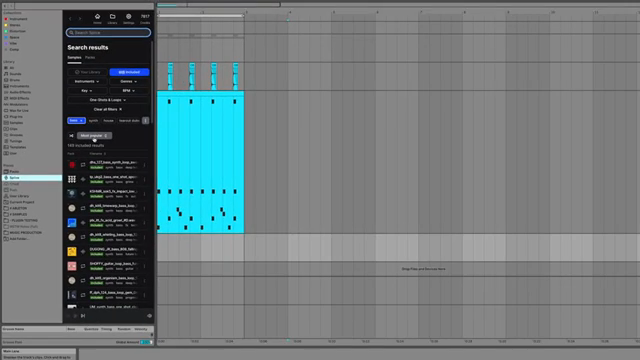
"It is so much better to have splice in your Ableton browser."
© Screenshot/Quote: Andrewhuang (YouTube)
Here’s one for the sample hoarders: Andrew spotlights the Splice integration that puts your whole sample stash right inside Ableton’s browser. Forget flipping between apps and dropping samples like you’re juggling flaming toasters—now it’s all in one window. Find what you want, drag it straight in, and keep the groove going. For anyone already drowning in Splice packs, this is hands down the smoothest way to keep your flow unbroken.
Undo History: Time Travel for the Indecisive Producer
Ever wish you could scroll back through your every studio mistake? Ableton’s undo history is your creative time machine, and Andrew takes it for a spin with Option + Command + Z. Not only can you step back in time to before you added that questionable donkey sample, you can click through your entire undo chain and jump to any state you like—provided you don’t touch anything else and mess up the timeline.
It’s a tiny, hidden feature that can save your bacon when you’re deep in the session fog and can’t remember what you just did. Andrew’s demo is a perfect reminder: sometimes the best moves are the ones you can take back. If you want the full effect, watch him bounce through his undo stack—text just can’t capture the satisfaction of seeing a project reverse itself one click at a time.
This article is also available in German. Read it here: https://synthmagazin.at/andrew-huangs-13-ableton-power-tipps-workflow-waffen-fuer-die-strasse/
More articles about these products:
 Markers That Splash: Underdog Electronic Music School’s Guide to Kickstarting Your Phrases
 Kairos as Living Sculpture: MusicRadar Tech Enters Laura Misch’s Sonic Sanctuary
 Voltage Labs: Berlin’s Sonic Mosaic – Studios, Shadows and the Pulse of Creation
 Architecting Performances: Novation Launch Control and Ableton Live Macro Workflows
 Nebula Machines: Bahadırhan Koçer and the Sonic Physics of Dub Techno
 Pick Yourself’s Hypnotic Bass Hack: Rumble Kicks Are Out, Sliding Grooves Are In
 Mad Moments & Club Tactics: Tom VR Gets Real with MusicRadar Tech
 Bonedo Synthesizers: How to Make Any Synth Scream Acid Like a 303
 LNA Does Audio Stuff: Making Beats on the Cheap with Ableton Note—Beach Edition
 Andrew Huang’s Remix Rodeo: Four Producers, One Song, Total Mayhem
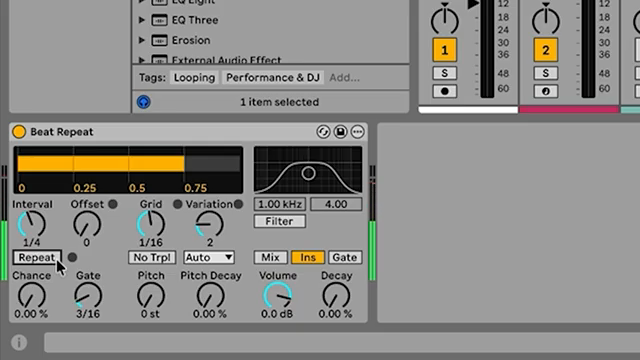 MusicRadar Tech Unleash Ableton Beat Repeat: From Lazy Slicer to Glitch Mayhem
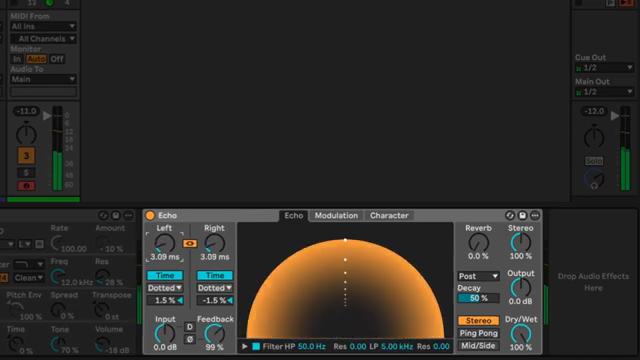 Pick Yourself Makes Echo Bang: Delay as Synth Weapon
Watch on YouTube:
Latest articles
Watch on YouTube:
Visit the channel:
https://www.youtube.com/andrewhuang
https://www.youtube.com/andrewhuang
Links from andrewhuang:
Instagram: https://instagram.com/andrewismusic
Facebook: https://facebook.com/andrewismusic
Bandcamp: https://andrewhuang.bandcamp.com
My plugin: https://babyaud.io/transit
My book: https://andrewhuang.com/book
My online class: https://studio.com/andrew
Flip Sampler: https://flipsampler.com
Join my Patreon: https://patreon.com/andrewhuang
Join my Discord: https://discord.gg/Fu8zwbFQAa
Sponsored links:
If you purchase via these links, we may earn a small commission – at no extra cost to you. The link opens an Amazon keyword search, and results may vary depending on availability.
Ableton Live
🔗 Check price on Amazon
🔗 Check price on Amazon
Splice
🔗 Check price on Amazon
🔗 Check price on Amazon