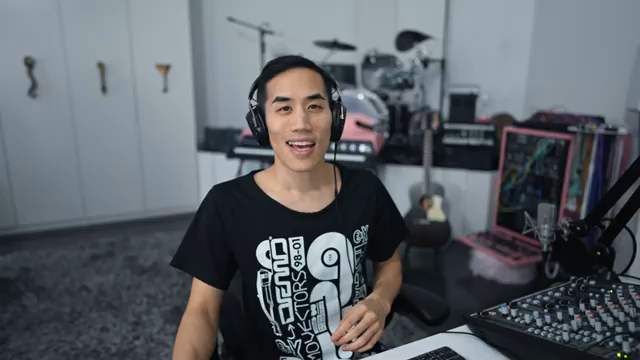
Andrew Huang isn’t here to waste your time with dry manuals or basic button mashing. In this turbo-charged Ableton Live tip-off, he blitzes through 13 workflow tricks that’ll have you slicing, swapping, and automating like a caffeinated octopus. Whether you’re tired of gridlock in your drum racks or sick of mouse-chasing automation curves, Andrew’s got a shortcut for it. Expect sample swaps, MIDI hacks, envelope wizardry and a few moments that’ll make you wonder if you’ve been using Ableton with the safety wheels on. If you want to see a master at work—minus the fluff—this is the one to watch.
23. May 2026
SPARKY
Andrew Huang’s Ableton Wizardry: 13 Tips that Actually Change the Game
Ableton Drum Rack, Ableton Live, Envelope MIDI (Ableton device), EQ Eight, Splice
13 Ableton Power Moves in Under 10 Minutes
Andrew Huang launches straight into a barrage of Ableton Live tips, each one snappier than a breakbeat at 3am. Forget the usual DAW drudgery—these are hard-hitting, time-saving moves that actually make you faster. From swapping out drum rack samples with one click to splitting MIDI notes like you’re prepping for a drill hat showdown, he’s out to banish your workflow bottlenecks for good.
The video isn’t just a list of random features; it’s a turbo tutorial for anyone who’d rather make music than stare at menus. Andrew’s delivery is, as always, sharp and energetic, never lingering too long on the obvious. If you want to see these quickfire tricks in action, his on-screen demos are as clear as they are fast. Blink and you’ll miss something that could save you hours in your next project.
"The place where I'd use this the most is programming drill hats."
© Screenshot/Quote: Andrewhuang (YouTube)
Sample Swapping Like a Mad Scientist
"I can swap the whole kit with these ones up here."
© Screenshot/Quote: Andrewhuang (YouTube)
Sample grave digging just got easier. Andrew shows how drum rack slots can be swapped by similarity, letting you audition entire kits or single hits on the fly. No more drag-and-drop tedium—just tap a button and cycle through options till something slaps.
But he’s not stopping there. If you need to replace every instance of a sample across a whole project, there’s a trick for that too: right-click, manage the sample file, and swap them all out at once. It’s the kind of feature that makes you wonder why you ever spent time hunting for lost snares—pure Ableton voodoo for the efficiency-obsessed.
Automation Alchemy: Squeeze, Skew, and Stretch
Automation in Ableton doesn’t have to feel like spreadsheet work. Andrew demonstrates how those tiny handles on automation lanes let you scale, squeeze, and stretch your breakpoints with one mouse move. Left, right, up, down—every direction does something useful, and it’s all about bending automation to your will instead of the other way around.
He also dishes out a killer tip for triggering envelopes directly from drum rack slots using the Envelope MIDI device. That means you can automate send FX or any parameter, precisely when you hit a specific drum note, without painting automation everywhere. It’s the sort of hack that’s as clever as it is dirty—pure rave bunker logic for live performance chaos.
"And each of these will reshape your automation in a different way."
© Screenshot/Quote: Andrewhuang (YouTube)
Default Tracks: Start Every Session at Full Speed
Why start from scratch every time? Andrew shows how you can save default audio and MIDI tracks—complete with your favourite utility and EQ settings—so every new session boots up ready to roll. He even covers saving default plugin states, including third-party VSTs and effect racks, so your most-used setups are always just one click away. Less prep, more bangers.
Splice, Undo, and Taking Control
"It is so much better to have splice in your Ableton browser."
© Screenshot/Quote: Andrewhuang (YouTube)
Andrew wraps up with two underrated diamonds: Splice integration and the legendary undo history. With Splice now living inside Ableton’s browser, dragging in samples is smoother than ever—no more app-hopping. And if you’ve ever made a catastrophic mistake (who hasn’t?), the option-command-Z undo list lets you jump back to any moment in your project’s timeline, even all the way to that embarrassing donkey sample. Watch the video for the full chaos—some things just can’t be described in text.
This article is also available in German. Read it here: https://synthmagazin.at/andrew-huangs-ableton-zauberei-13-tipps-die-wirklich-was-aendern/
Watch on YouTube:
Latest articles
Watch on YouTube:
Visit the channel:
https://www.youtube.com/andrewhuang
https://www.youtube.com/andrewhuang
Links from andrewhuang:
Instagram: https://instagram.com/andrewismusic
Facebook: https://facebook.com/andrewismusic
Bandcamp: https://andrewhuang.bandcamp.com
My plugin: https://babyaud.io/transit
My book: https://andrewhuang.com/book
My online class: https://studio.com/andrew
Flip Sampler: https://flipsampler.com
Join my Patreon: https://patreon.com/andrewhuang
Join my Discord: https://discord.gg/Fu8zwbFQAa
Sponsored links:
If you purchase via these links, we may earn a small commission – at no extra cost to you. The link opens an Amazon keyword search, and results may vary depending on availability.
Ableton Drum Rack
🔗 Check price on Amazon
🔗 Check price on Amazon
Ableton Live
🔗 Check price on Amazon
🔗 Check price on Amazon
Envelope MIDI (Ableton device)
🔗 Check price on Amazon
🔗 Check price on Amazon
EQ Eight
🔗 Check price on Amazon
🔗 Check price on Amazon
Splice
🔗 Check price on Amazon
🔗 Check price on Amazon