Ready to turn your studio into a rave bunker? XNB takes the Novation Launch Control XL for a proper spin, slicing through DAW modes, custom MIDI mapping, and Ableton Live workflows like a synth-wielding ninja. This isn’t your average controller walkthrough – it’s a no-nonsense, hands-on guide that actually shows you how to weaponise the XL for real-world music making. If you’re tired of fluffy overviews and want the gritty details (plus a few workflow hacks), this is the deep dive you’ve been waiting for. Don’t let the plastic fool you – in XNB’s hands, the Launch Control XL is a beast.
5. April 2026
SPARKY
XNB’s Launch Control XL Deep Dive: From DAW Domination to Custom Chaos
Two-Faced Street Weapon: DAW & Standalone Modes
The Novation Launch Control XL isn’t just a pretty face – it’s got two distinct personalities. XNB kicks off by showing how this controller can run in DAW mode for tight integration with your software, or break free and operate standalone for extra hands-on control in any setup. Whether you’re deep in Ableton or just want more physical knobs for your hardware rig, the XL’s dual modes mean it’s never out of place.
Switching between these modes is as easy as hammering the Mode button, and XNB doesn’t waste time on fluff – you get the quick and dirty on how to jump between DAW Control, DAW Mixer, and those mysterious custom modes. The faders always control volume, but it’s the encoders that get a personality transplant depending on the mode. This isn’t just a MIDI box – it’s a shape-shifter for your workflow.
"You can use it with a DAW or you can use it without a DAW to have extra controls within a setup."
© Screenshot/Quote: Xnbeatsmusic (YouTube)
DAW Control vs DAW Mixer: Choose Your Fighter
"And notice that the values not change it. So you instantly know how much you have right there."
© Screenshot/Quote: Xnbeatsmusic (YouTube)
XNB dives into the Launch Control XL’s DAW modes like a DJ in a toaster-fight. DAW Control mode is all about the essentials: transport, loop, markers, and tempo. Hit the Mode button and you’re in DAW Mixer territory, where the encoders handle panning and send levels, giving you instant access to your mix without ever touching a mouse. The faders? They’re always on volume duty, no matter what.
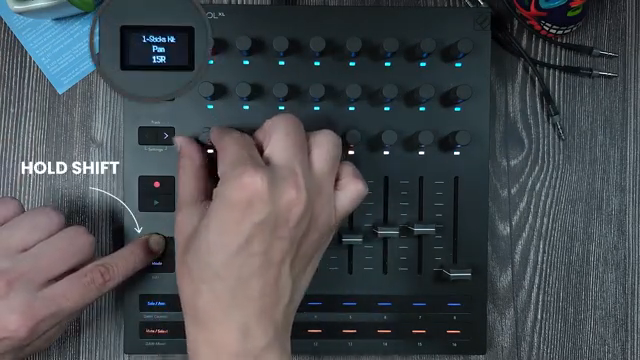
Navigating tracks is slick – use the Track button to hop up and down, or the row of buttons at the bottom to solo, arm, mute, or select tracks. Got more than eight tracks? No sweat. Hold Shift and you can page through your session in blocks of eight, with the screen always telling you where you are. Even return tracks get their moment in the spotlight, and XNB shows how to latch Shift so you’re not stuck holding it like a mug.
The details get even juicier: XNB points out how holding Shift while turning an encoder lets you see parameter values without accidentally wrecking your mix. There’s a proper breakdown of how the colour coding works for panning, sends, and device controls, plus a few Ableton quirks that’ll trip up the unwary. It’s a full-on workflow upgrade for anyone who likes to keep their hands off the trackpad.
Custom Modes: DIY MIDI Mayhem
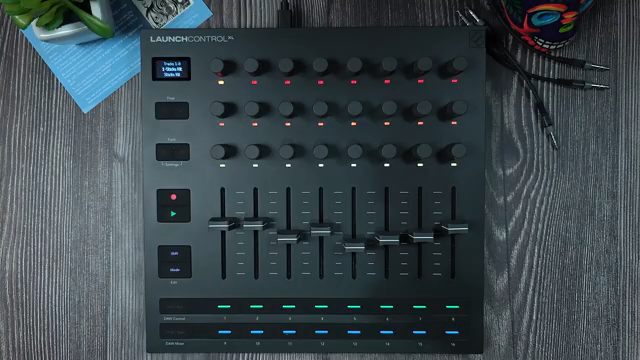
Here’s where the Launch Control XL goes from handy to downright dangerous. XNB unlocks the custom modes – sixteen of them, no less – where you can map any knob, fader, or button to whatever MIDI CC you fancy. Want to control your amp’s dry/wet with a fader instead of a knob? Sorted. Prefer your own colour scheme and naming? The Components app has you covered.
XNB walks through creating a custom mode, mapping controls in Ableton, and saving it all as a template so you don’t have to repeat yourself every session. There’s a catch: Ableton doesn’t save MIDI mappings across projects unless you use templates, but XNB’s got the workaround. This is the kind of flexible, user-driven control that turns the Launch Control XL into a true performance weapon – and the video shows it all in action.
"And just like this, you can MIDI map anything. The faders, the rest of the knobs, or even the buttons."
© Screenshot/Quote: Xnbeatsmusic (YouTube)
Ableton Live Navigation: Fast Lane Tips
If you’re tired of menu-diving, XNB’s got your back. The Launch Control XL makes track selection and device parameter tweaking a breeze. You can jump between tracks, arm and solo with a tap, and even page through devices on a track using Shift and the arrow keys. The pink encoders light up when a device is mapped, so you always know what you’re tweaking.
Navigating complex Ableton sets is less of a headache: use Shift to page through tracks and return channels, and the screen keeps you oriented. Device control is equally slick – select a track, see which devices are available, and flip between them with the page buttons. If you’re running a big session, this controller keeps you in the groove instead of lost in the menus.
See It, Hear It: Why You Need to Watch
Look, you can read about knobs and faders all day, but the real magic is in the video. XNB doesn’t just talk – they show you the Launch Control XL in action, with real-time audio, screen feedback, and workflow hacks you won’t get from a manual. If you want to see how this controller actually fits into a live or studio setup, don’t just take my word for it – hit play and watch the beast unleashed.
This article is also available in German. Read it here: https://synthmagazin.at/xnbs-launch-control-xl-deep-dive-vom-daw-boss-zum-custom-chaos/
Watch on YouTube:
Latest articles
Watch on YouTube:
Visit the channel:
https://www.youtube.com/XNBeatsMusic
https://www.youtube.com/XNBeatsMusic
Links from XNBeatsMusic:
instagram: https://instagram.com/xnb.synths.music
Sponsored links:
If you purchase via these links, we may earn a small commission – at no extra cost to you. The link opens an Amazon keyword search, and results may vary depending on availability.
Novation Launch Control XL
🔗 Check price on Amazon
🔗 Check price on Amazon