Ever had your MIDI keyboard ghost you in Logic Pro right when the beat’s about to drop? Chris Sangster, the LA studio wizard behind sangstersounds, is here to save your session and your sanity. In this no-nonsense, step-by-step video, Chris lays out every fix in the book—from unplugging cables to deep-diving into Mac’s MIDI Studio—so you can get back to making music instead of pulling your hair out. His style is all about practical solutions, not tech jargon, and he’s got the streetwise tips to match. If you want to stop troubleshooting and start grooving, this is the checklist you need.
26. January 2026
RILEY
Chris Sangster’s MIDI Survival Guide: Logic Pro Troubleshooting That Actually Works
Akai MPK-49, Korg SV1, Logic Pro, Presonus Faderport, UAD Apollo
MIDI Mayhem: Why Logic Pro Trips You Up
Let’s be real—MIDI issues in Logic Pro are like that one stubborn ketchup stain: everyone’s got one, and nobody wants to talk about it. Chris Sangster kicks things off by sharing just how common these headaches are, with folks flooding his inbox looking for answers. He’s not just here for the techies; he’s talking to anyone who’s ever stared at a silent keyboard and wondered if it’s time to buy a new USB cable or just cry into their coffee.
But here’s the kicker: while Logic Pro usually plays nice with modern MIDI gear, there’s a whole mixtape of ways things can go sideways. Chris doesn’t sugarcoat it—there’s no magic bullet, just a bunch of practical fixes that’ll get you back to making beats instead of troubleshooting. So, if you’re tired of the same old MIDI drama, this video’s got your back.
"Most of the time, Logic is very plug and play when it comes to MIDI devices, especially modern USB-powered MIDI keyboards."
© Screenshot/Quote: Sangstersounds (YouTube)
From Easy Wins to Deep Dives: The Fix List
"When in doubt, swap a cable out."
© Screenshot/Quote: Sangstersounds (YouTube)
Chris starts with the basics—unplug, restart, and plug it back in. Yeah, it sounds like IT support, but you’d be surprised how often it works. He runs through the essential checklist: make sure you’ve got a software instrument track, a valid plugin loaded, and that record is enabled. If you’re seeing meters light up but still hearing nothing, check your audio outputs and make sure your speakers or headphones aren’t just on mute (been there, done that).
If that doesn’t do the trick, Chris digs deeper. Sometimes it’s the plugin itself—maybe it needs a patch loaded, or you’re running a demo that’s expired. He warns against messing with MIDI routing in the Track Inspector unless you know your stuff, because one wrong move and your session’s toast. The real MVP move? Check if Logic is even receiving MIDI data by customizing the control bar to show MIDI activity. If nothing’s coming in, it’s time to reset MIDI drivers or check device recognition.
He doesn’t stop at Logic, either. If your keyboard’s still invisible, Chris shows how to use Mac’s Audio MIDI Setup to see if your computer even knows your gear exists. Sometimes it’s as simple as a bad cable, a missing firmware update, or a USB hub that’s just not up to the job. The fixes range from swapping cables to factory resets, and yeah—sometimes you just gotta try a different USB port. This section is packed with streetwise advice you won’t find in the manual.
Reset, Recognize, and Roll: Key Workflow Insights
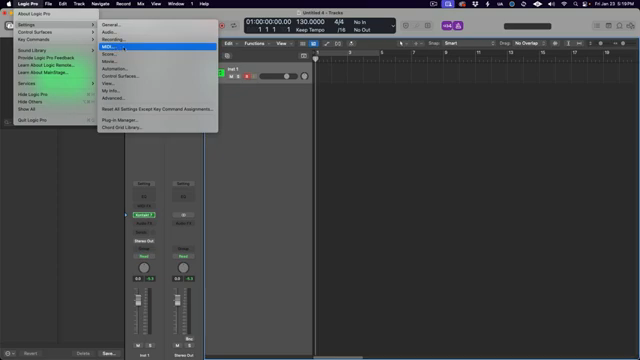
One of Chris’s clutch tips is resetting MIDI drivers right from Logic’s settings. It’s like hitting the reset button on your old Nintendo—suddenly, things just work again. If that doesn’t bring your keyboard back from the dead, he walks you through verifying device recognition in Logic’s MIDI input list, making sure every port is checked and ready to go.
This isn’t just busywork—it’s about keeping your workflow smooth so you can focus on the groove, not the gear. Chris’s approach is all about quick, effective moves that keep you in the creative zone, not stuck in tech support limbo.
"Go to the Logic Pro menu, settings and MIDI, and then click on this button called reset all MIDI drivers."
© Screenshot/Quote: Sangstersounds (YouTube)
Control Surfaces: The Plot Thickens
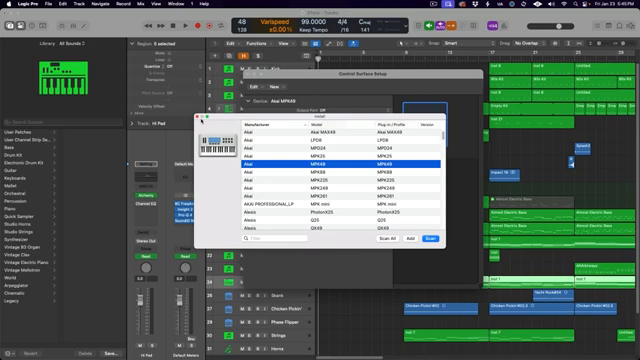
"Once we've added the device, there's one more step to take."
© Screenshot/Quote: Sangstersounds (YouTube)
Just when you thought you had MIDI figured out, control surfaces show up and flip the script. Chris breaks down how these devices—think faders, knobs, and transport buttons—need extra setup to play nice with Logic. Most MIDI keyboards double as control surfaces, but getting those extra features working isn’t always plug-and-play.
He walks you through the process: installing your device as a control surface, setting the right input and output ports, and picking the right preset for your DAW. There’s a whole world of customization here, but Chris warns that it’s easy to mess things up if you get too wild. Luckily, Logic’s got a “rebuild defaults” button for when things go sideways. If you want to see how deep the rabbit hole goes, you’ll have to watch the video—some of these quirks are better seen than read.
Hands-On Routing: Real-World MIDI and Audio Setups
Chris doesn’t just talk theory—he shows you how to route MIDI and audio like a pro. Using his Korg SV1 and UAD Apollo, he demonstrates how to set up an external MIDI track, connect audio outputs, and make sure everything’s talking to each other. It’s not just about getting MIDI in; it’s about capturing the sound, bouncing tracks, and knowing when to record audio versus MIDI.
He covers both the simple way—using Logic’s external instrument plugin for one-track magic—and the more advanced method of splitting MIDI and audio across separate tracks. Each approach has its pros and cons, and Chris lays out the street-smart logic behind both. If you’ve ever wondered why your hardware synth isn’t making noise in Logic, this section is pure gold.
But let’s be real: some of these routing moves are best learned by watching Chris do it live. The video’s got all the nitty-gritty details, so if you want to see the workflow in action, don’t just read—hit play and watch the magic happen.
This article is also available in German. Read it here: https://synthmagazin.at/chris-sangsters-midi-ueberlebensguide-logic-pro-troubleshooting-das-wirklich-hilft/
Watch on YouTube:
Latest articles
Watch on YouTube:
Visit the channel:
https://www.youtube.com/sangstersounds
https://www.youtube.com/sangstersounds
Links from sangstersounds:
FREE DOWNLOADS!: https://linktr.ee/sangstersounds
Website: https://sangstersounds.com
Instagram: https://instagram.com/sangstersounds
Sponsored links:
If you purchase via these links, we may earn a small commission – at no extra cost to you. The link opens an Amazon keyword search, and results may vary depending on availability.
Akai MPK-49
🔗 Check price on Amazon
🔗 Check price on Amazon
Korg SV1
🔗 Check price on Amazon
🔗 Check price on Amazon
Logic Pro
🔗 Check price on Amazon
🔗 Check price on Amazon
Presonus Faderport
🔗 Check price on Amazon
🔗 Check price on Amazon
UAD Apollo
🔗 Check price on Amazon
🔗 Check price on Amazon